LINKEDIN ADS GUIDE
How to Create LinkedIn Ads With AI in 2026
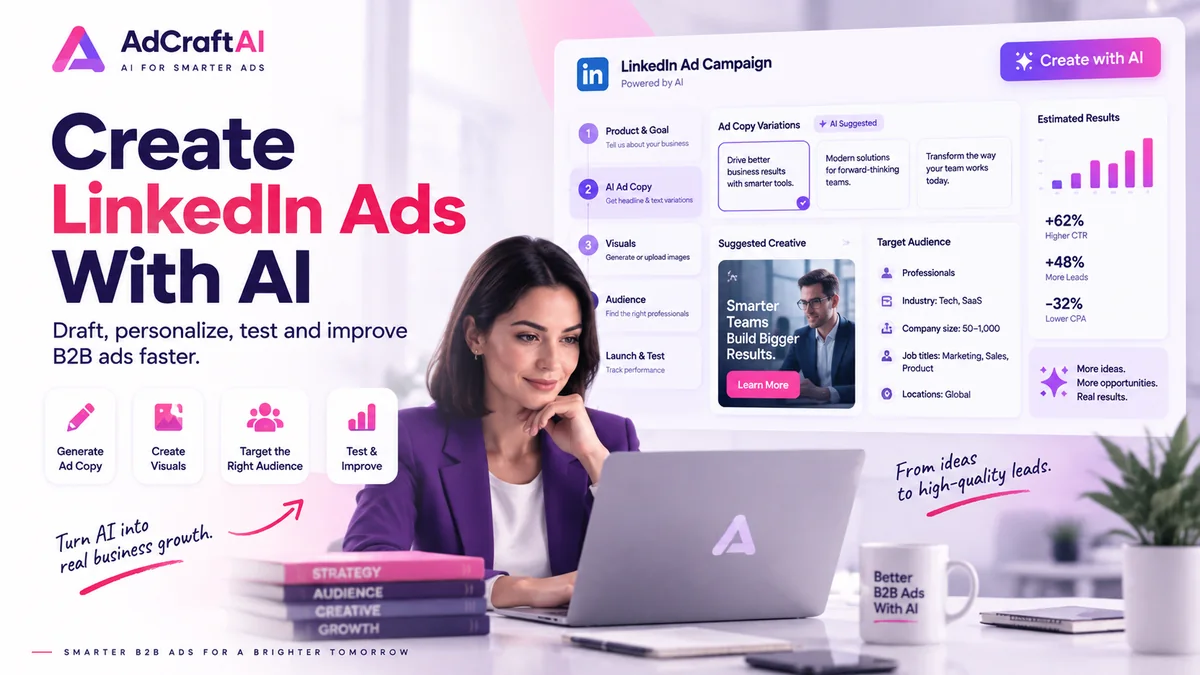
LinkedIn now includes AI-assisted creative tools inside Campaign Manager for drafting ads, keeping creative on brand, producing additional message variants and personalizing copy. This guide shows how to use those tools without handing the strategy to AI.
Disclosure: This page may contain affiliate links. We may earn a commission at no extra cost to you if you sign up through these links.
LinkedIn advertising is built around professional context: who a person is at work, the company they work for, their role, seniority and the business problem they are trying to solve.
AI can speed up creative production, but a useful LinkedIn ad still needs a clear B2B audience, a relevant offer, accurate claims, the right landing page and a testing plan.
If you want the wider cross-platform strategy first, read our complete AI advertising guide . If your campaign also includes search advertising, see our Google Ads With AI guide .
What Does Creating LinkedIn Ads With AI Actually Mean?
Creating LinkedIn Ads with AI does not mean asking an AI tool to choose every campaign decision. It means using AI to accelerate repetitive parts of the workflow while keeping the audience, positioning, offer and final approval under human control.
- Turn product and audience information into ad angles.
- Draft introductory text and headlines.
- Generate or suggest visual concepts.
- Create multiple message variants for testing.
- Personalize messaging for professional audience attributes.
- Help organize creative testing and iteration.
LinkedIn AI Advertising Tools Available in 2026
LinkedIn has expanded AI-assisted creative features inside Campaign Manager. The current toolset includes Draft with AI, Brand Kit, AI ad variants, ad personalization and flexible ad creation.
| Tool | Main Job |
|---|---|
| Draft with AI | Draft introductory text, headlines and, for supported single-image workflows, suggested or generated image creative. |
| Brand Kit | Store colors, fonts and brand voice so AI-assisted creative stays closer to your brand. |
| AI Ad Variants | Generate additional versions of existing introductory text and headlines for testing. |
| Ad Personalization | Tailor eligible messaging using professional attributes such as company, industry and job title. |
| Flexible Ad Creation | Mix and test multiple images, videos and copy options from one campaign setup. |
Important 2026 update:
LinkedIn discontinued Accelerate as a standalone campaign type starting August 4, 2026. LinkedIn says its core creation capabilities are now available in Classic campaigns, so this guide focuses on the current Campaign Manager workflow instead of treating Accelerate as the main campaign type.
How to Create LinkedIn Ads With AI: Step by Step
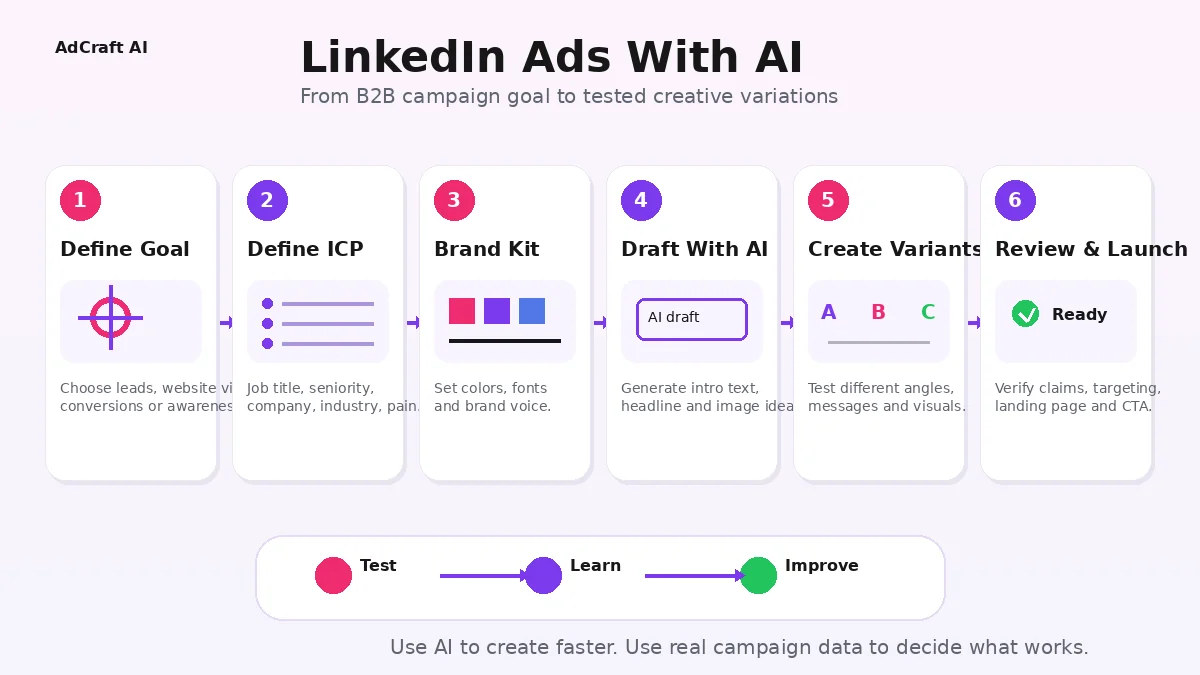
1. Define the Business Objective
Start with the result the campaign should produce. Examples include brand awareness, website visits, engagement, lead generation or website conversions. Do not start with the AI tool.
Example campaign brief
Product: B2B project management software
Audience: Operations leaders at growing service businesses
Problem: Projects and client handoffs are scattered across tools
Benefit: Keep work, deadlines and ownership visible in one place
Goal: Book product demos
2. Define the ICP Before Generating Copy
LinkedIn is strongest when the message is written for a specific professional audience. Give the AI concrete B2B context.
- Job function
- Seniority
- Company size
- Industry
- Current workflow problem
- Buying motivation
Create LinkedIn ad ideas for operations managers at 50–500 employee professional-services companies. The product is project management software that helps teams coordinate client work and deadlines. Focus on visibility, handoffs and missed deadlines. Keep the tone professional and specific. Avoid generic productivity claims.
3. Choose the Ad Format
LinkedIn supports several advertising formats. For a straightforward AI-assisted workflow, single image ads are especially useful because LinkedIn documents a complete AI creation flow for them, including Draft with AI, image suggestions, rewriting and variant creation.
Video and document ads can also use AI assistance for ad copy in supported Campaign Manager workflows, but the creative production process is different.
4. Create or Review Your Brand Kit
Brand Kit lets you define elements such as colors, fonts and brand voice. LinkedIn can also assemble an initial brand voice using signals from your LinkedIn presence, which you can review and edit.
LinkedIn currently documents Brand Kit for single image ad creation. Treat it as guidance for the AI, not a substitute for final brand review.
5. Use Draft With AI to Build the First Ad
Inside the Ads section of Campaign Manager, choose Create ad and use Draft with AI when it is available for the selected workflow. LinkedIn can draft introductory text and a headline, and supported single-image workflows can also surface visual options.
The first draft should be treated as raw material. Review it for specificity, factual accuracy, tone and relevance to the audience.
6. Rewrite the Introductory Text Around One B2B Problem
Strong B2B ad copy usually becomes clearer when one problem is carried through the whole message.
Generic: Work smarter with our powerful platform.
More specific: Client work gets harder to coordinate as your team grows. Give operations leaders one place to see owners, deadlines and project status.
7. Choose or Create a Visual That Supports the Message
The image should make the headline easier to understand, not compete with it. Depending on the workflow, Campaign Manager can suggest images from your media library or Shutterstock, and Microsoft Designer can be used to customize eligible single-image creative.
If you already have product screenshots or branded creative, compare them with generated options instead of replacing them automatically.
8. Generate Meaningful AI Ad Variants
LinkedIn's AI ad variants feature can create additional versions from the existing introductory text and headline. The goal is not to create minor wording changes. Use each variant to test a different message angle.
- Problem-focused
- Outcome-focused
- Product-demo focused
- Social-proof focused
- Offer-focused
9. Personalize Carefully
LinkedIn offers ad personalization options that can tailor eligible copy using professional profile attributes such as job title, company and industry.
Use personalization when it genuinely improves relevance. A message should still read naturally if the professional attribute is removed.
10. Preview and Review Before Launch
- Confirm every product and pricing claim.
- Make sure the landing page matches the offer.
- Check introductory text and headline for clarity.
- Preview the ad on supported devices.
- Verify the CTA matches the campaign objective.
- Review audience targeting and exclusions.
How to Use LinkedIn Draft With AI
Draft with AI is designed to reduce the blank-page problem. In supported single-image ad creation, LinkedIn can draft introductory text, a headline and image options from campaign and business context.
LinkedIn's current guidance emphasizes using AI output as a starting point and then refining it. The platform also warns that generic, repetitive or low-substance AI content can feel like low-quality AI output to members.
Before using Draft with AI, prepare:
- A specific landing-page URL
- A one-sentence product description
- A clear audience definition
- The main business problem
- One primary conversion action
Use Brand Kit to Keep AI-Generated LinkedIn Ads On Brand
When creative production scales, consistency becomes harder. Brand Kit helps centralize brand signals such as colors, fonts and voice so AI-assisted ad creation starts from clearer constraints.
Review the generated brand voice before relying on it. Add specific instructions about how your brand speaks, which phrases it avoids and what proof points matter.
Use AI Ad Variants and Personalization for Better Testing
LinkedIn currently allows advertisers to create AI-powered variants from existing single-image ad copy. LinkedIn documents three generated variations based on the existing introductory text, headline and LinkedIn best practices.
This is useful when the starting ad is already strategically sound and you want to test alternate messaging without rebuilding each ad manually.
| Variant | Message |
|---|---|
| A | Reduce missed deadlines |
| B | Improve team visibility |
| C | Simplify client handoffs |
LinkedIn also offers flexible ad creation, which can combine multiple supplied images, videos and copy options and optimize delivery as performance signals emerge. Use it only after the individual assets are strong enough to deserve testing.
Where AdCreative.ai Can Fit in a LinkedIn Ads Workflow
LinkedIn's native AI tools are useful when you are already building the campaign in Campaign Manager. An external creative tool can play a different role: generating visual concepts, copy directions and creative variations before selected assets are brought into LinkedIn.
AdCreative.ai can be used in that external production stage when you want to explore additional creative directions across LinkedIn and other advertising channels.
If you want to evaluate the tool first, read our AdCreative.ai pricing and plans guide .
Create More B2B Ad Variations With AI
Explore an AI-focused creative workflow for producing advertising concepts and variations before adapting the strongest assets for LinkedIn Campaign Manager.
Discover the AI Tool →
Practical Example: Create a LinkedIn B2B Ad With AI
Imagine we are promoting project management software to operations leaders at growing professional-services firms.
Campaign Brief
Audience: Operations managers and directors
Company size: 50–500 employees
Problem: Client work becomes difficult to coordinate across disconnected tools
Benefit: One view of project owners, tasks and deadlines
Goal: Product demo requests
AI Draft Prompt
Write three LinkedIn single-image ad concepts for operations leaders at growing professional-services firms. The product is project management software that centralizes client projects, ownership and deadlines. Use a professional B2B tone. Focus each variation on one different problem: missed deadlines, poor visibility or difficult handoffs. End with a demo-focused CTA. Do not invent statistics or guarantees.
Example Ad
Introductory text:
Client work gets harder to coordinate as your team grows. Give operations leaders one place to see project owners, deadlines and next steps.
Headline: Bring Client Work Into One View
CTA: Request Demo
Create Three Meaningful Variants
- Version A: Reduce missed deadlines.
- Version B: Improve visibility across client work.
- Version C: Make handoffs easier as the team grows.
Final Human Review
Confirm the product really supports the claims, the demo landing page matches the offer, the audience is appropriate and the visual accurately represents the product or use case.
How to Test AI-Generated LinkedIn Ads
Generating more creative is valuable only when the variations help you learn something. Keep the audience and conversion goal stable, then test one meaningful difference at a time.
| Test | Example |
|---|---|
| Message angle | Visibility vs missed deadlines |
| Visual | Product screenshot vs professional scenario |
| CTA | Request Demo vs Learn More |
| Personalization | General copy vs relevant professional attribute |
Choose metrics that reflect the campaign objective. For lead generation, that may include lead volume, cost per lead and lead quality. For website-conversion campaigns, look beyond CTR and include the conversion outcome that matters to the business.
Common Mistakes When Creating LinkedIn Ads With AI
Using Generic B2B Copy
“Grow your business” and “work smarter” can apply to almost any product. Give AI the job role, business problem, buying context and product value.
Treating Accelerate as the Current Standalone Campaign Type
Accelerate was discontinued as a standalone campaign type in August 2026. Build new campaigns around the current Campaign Manager experience and use the AI capabilities now available there.
Accepting AI Drafts Without Editing
AI-generated copy can be repetitive or too broad. Rewrite it until it sounds like a real brand speaking to a specific professional audience.
Personalizing Without Adding Value
Inserting a job title or company name does not automatically make an ad relevant. The message still needs to address a real problem for that audience.
Testing Cosmetic Changes Instead of Different Ideas
Changing a few words or background colors may not teach you much. Test distinct message angles and useful visual differences.
Sending Professional Traffic to a Generic Landing Page
If the ad promises a solution for operations leaders, the landing page should continue that story. Ad and landing-page relevance should be reviewed together.
A Simple LinkedIn Ads With AI Workflow
- Define the campaign objective.
- Define the ideal professional audience.
- Choose one business problem.
- Prepare the offer and landing page.
- Review or create the Brand Kit.
- Use Draft with AI for the first creative draft.
- Rewrite generic copy into specific B2B messaging.
- Choose or create the visual.
- Generate meaningful AI ad variants.
- Use personalization only where it improves relevance.
- Review claims, targeting, CTA and landing page.
- Launch, measure and create the next variants from real data.
Build a Broader AI Advertising Workflow
LinkedIn is especially useful for professional and B2B advertising, while other platforms can support search, video and broader social creative.
Frequently Asked Questions About LinkedIn Ads With AI
Can AI create LinkedIn ads?
Yes. LinkedIn Campaign Manager includes AI-assisted ad creation features, including Draft with AI and AI ad variants for supported workflows.
What is LinkedIn Draft with AI?
Draft with AI helps create a first ad draft from business and campaign context. In supported single-image workflows, it can draft introductory text, headlines and image creative options.
Can LinkedIn AI create multiple ad variations?
Yes. LinkedIn's AI ad variants feature can use an existing single-image ad's introductory text and headline to generate additional copy variations for review and testing.
Does LinkedIn have a brand kit for AI ads?
Yes. Brand Kit can store brand information such as colors, fonts and brand voice. LinkedIn currently documents Brand Kit for single-image ad creation.
Can LinkedIn personalize ads with AI?
LinkedIn offers ad personalization features that can tailor eligible ad copy using professional profile information such as company, industry and job title.
Is LinkedIn Accelerate still available?
Not as a standalone campaign type for new campaigns. LinkedIn discontinued Accelerate as a standalone campaign type starting August 4, 2026 and states that its core creation capabilities are available in Classic campaigns.
Can I use AI for LinkedIn video or document ads?
LinkedIn documents AI assistance for ad creation across single image, video and document workflows, although the available creative features vary by format.
Can I use AdCreative.ai for LinkedIn ads?
AdCreative.ai can support an external creative-production workflow for generating advertising concepts and variations before selected assets are adapted for LinkedIn.
Should I review AI-generated LinkedIn ads before publishing?
Yes. Review factual claims, audience relevance, brand voice, visual accuracy, CTA, targeting and landing-page consistency before publishing.
Official LinkedIn Ads Resources
LinkedIn advertising features can change quickly. Check the official documentation below before launching a campaign.
Final Thoughts
LinkedIn's current AI tools can make B2B ad creation faster by helping with the first draft, brand consistency, personalization and creative variants.
The best use of those tools is not to automate positioning or audience understanding. Use AI to remove repetitive work, then use professional context, human review and campaign data to decide what deserves to scale.
Explore AI-Powered Ad Creation
If producing enough fresh B2B creative variations is slowing down your workflow, an AI-focused advertising tool may be worth testing.
AdCreative.ai is one option for generating advertising concepts and creative variations before adapting selected assets to LinkedIn.
Discover the AI Tool →