AD ACCOUNT INTEGRATION GUIDE
How to Connect Ad Accounts to Your AI Advertising Workflow in 2026
Connect the correct advertising accounts to the correct brand so creative, analysis and media-library workflows use the right account context.
Disclosure: This page may contain affiliate links. We may earn a commission at no extra cost to you if you sign up through these links.
Ad-account integration turns an isolated creative tool into a workflow that can use account context and push approved assets toward the platforms where campaigns are managed.
AdCreative.ai currently documents connections for Meta, Google, LinkedIn and Pinterest, and its help center says users can connect as many ad accounts as they would like.
The main operational risk is choosing the wrong account ID, so the connection process should include explicit verification before saving.
For the wider strategy around generating, testing and improving advertising assets, see our complete AI advertising guide.
What This Workflow Means in Practice
Connect the correct advertising accounts to the correct brand so creative, analysis and media-library workflows use the right account context.
The goal is to reduce repetitive work while keeping the final campaign, integration or business decision accurate and measurable.
What Inputs Matter Most?
| Input | Why It Matters |
|---|---|
| Brand | The ad accounts are connected to a specific brand. |
| Platform | Choose the supported advertising platform. |
| Account ID | Identifies the exact account that should be connected. |
| Permissions | The connection must be authorized through the platform. |
| Selected status | Confirms which account IDs are active for the brand. |
| Update | Saves the final integration state. |
What to Prepare Before You Start
- Confirm the brand is already created.
- Log into the correct advertising-platform account.
- Know the exact account ID you want to connect.
- Remove confusion between personal profiles, business managers and ad accounts.
- Use only accounts you are authorized to manage.
- Document which brand maps to which account when managing multiple clients.
Important: Better source information reduces the amount of guessing in the workflow.
How to Connect Ad Accounts to Your AI Advertising Workflow: Step by Step
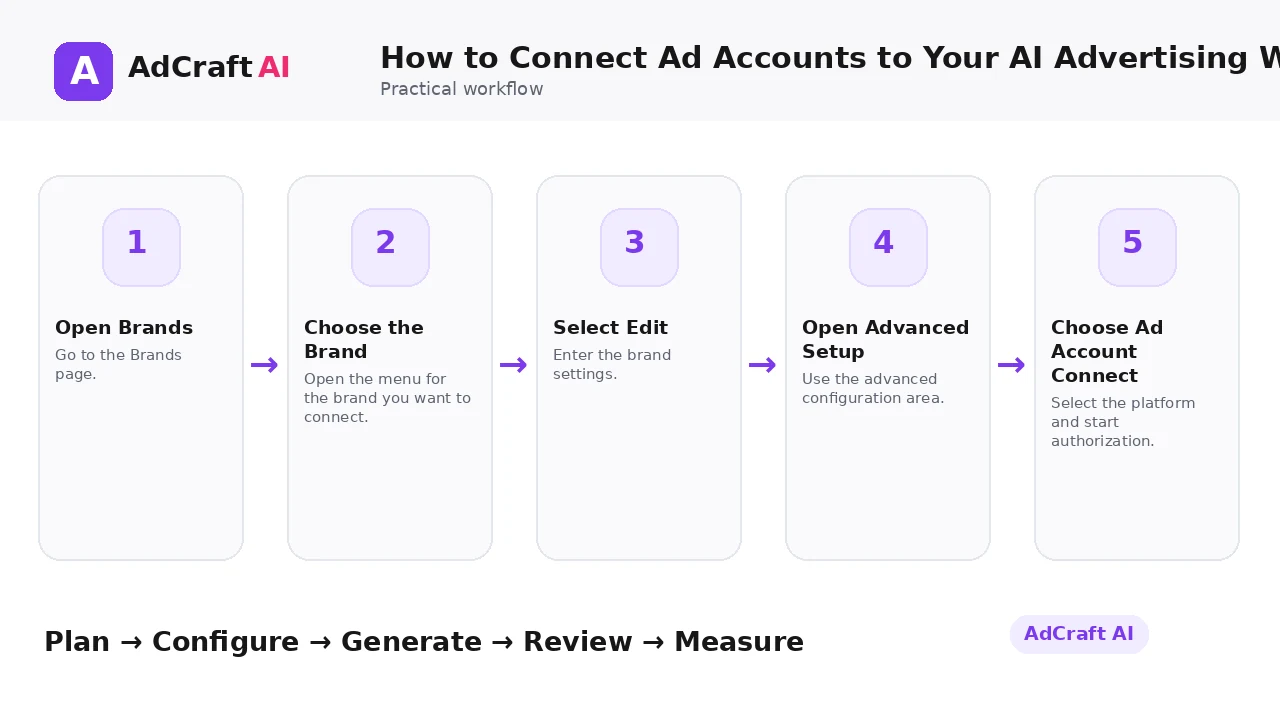
1. Open Brands
Go to the Brands page.
2. Choose the Brand
Open the menu for the brand you want to connect.
3. Select Edit
Enter the brand settings.
4. Open Advanced Setup
Use the advanced configuration area.
5. Choose Ad Account Connect
Select the platform and start authorization.
6. Select the Account
Choose the correct account ID and continue.
7. Verify the Selection
Check for Account(s) Selected and confirm the ID.
8. Update the Brand
Save the connection so it can be used in later workflows.
Which Ad Accounts Does AdCreative.ai Support?
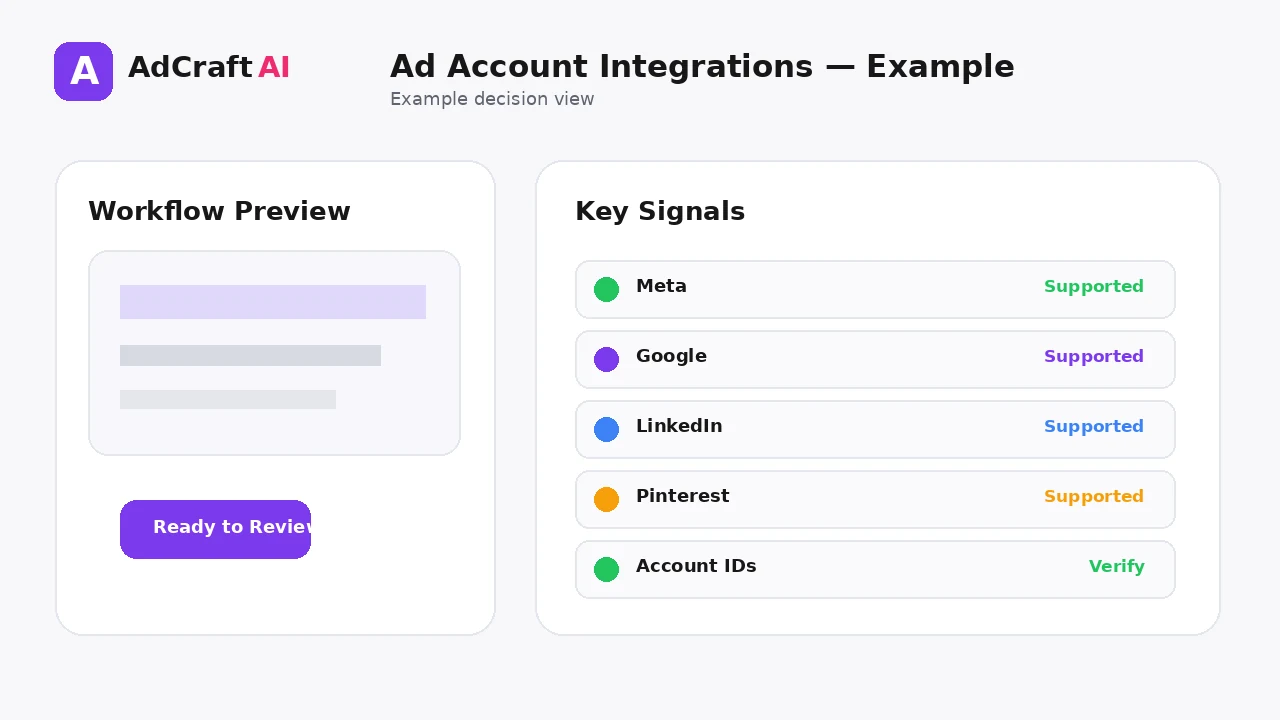
AdCreative.ai’s current help center says it supports ad-account connections for Meta, Google, LinkedIn and Pinterest.
The connection guide says users should open the brand, select Edit, open Advanced Setup, choose Ad Account Connect, select the account and then verify the account ID before updating the brand.
A separate help article says users can connect as many ad accounts as they would like. In practice, naming and documentation become more important as the number of brands and client accounts grows.
Explore the Current AdCreative.ai Workflow
Use the feature as a starting point, verify the current interface and plan details, and review every output before it becomes part of a live campaign.
Explore AdCreative.ai →What to Review Before You Use the Result
| Review Area | What to Check |
|---|---|
| Brand mapping | Is this account connected to the correct brand? |
| Account ID | Does the selected ID match the advertising platform? |
| Authorization | Was the correct business login used? |
| Selected status | Does the platform show Account(s) Selected? |
| Client separation | Are agency client accounts kept clearly separated? |
| Access hygiene | Do only authorized team members manage these connections? |
Practical Example: Connect One Brand to Meta and Google
Imagine a brand runs paid social and paid search from two separate ad accounts.
Meta: Select the exact Meta ad-account ID used for the brand’s campaigns.
Google: Connect the corresponding Google Ads account.
Verification: Confirm both accounts show as selected before updating the brand.
Now later creative and analysis workflows can use the correct brand-to-account mapping.
Common Mistakes
Selecting the wrong account ID
This is the most avoidable source of integration confusion.
Connecting every account to every brand
Keep account mappings intentional.
Using unauthorized access
Only connect accounts you are permitted to manage.
Skipping verification
Do not assume the first account in a list is the correct one.
Poor client naming
Agencies need a naming system when many accounts are connected.
Expecting connection to publish campaigns
Account connection enables integrations; it does not mean every creative is automatically launched.
Best Practices
- Use accurate and current source information.
- Create a small number of meaningful variations before expanding volume.
- Keep brand, offer and landing-page information consistent.
- Use automation and scoring as decision support, not as guarantees.
- Review every asset before delivery or launch.
- Use real campaign or operational data to decide the next iteration.
A Simple Repeatable Workflow
- Define one campaign or workflow goal.
- Prepare accurate source inputs.
- Configure the relevant brand, account or creative settings.
- Generate or complete a small first batch.
- Review accuracy, brand fit and operational risk.
- Deliver or launch only approved assets.
- Measure the result with the appropriate data source.
- Document what worked and what failed.
- Use the learning to improve the next iteration.
Continue Building Your AI Advertising Workflow
Frequently Asked Questions
Which ad platforms are supported?
AdCreative.ai currently lists Meta, Google, LinkedIn and Pinterest in its help center.
How many ad accounts can I connect?
A current help article says you can connect as many ad accounts as you would like.
Where do I connect them?
The documented path is Brand → Edit → Advanced Setup → Ad Account Connect.
Why should I verify the account ID?
The help center explicitly recommends checking the correct account ID before saving.
Does connecting an account automatically publish ads?
No. Publishing is a separate step on the advertising platform.
Can agencies connect client accounts?
The platform supports multiple accounts, but agencies should maintain clear authorization and brand-to-account mapping.
Official Resources
Product features, limits, integrations and plan details can change. Verify the current workflow in the official resources below.
Final Thoughts
Connect the correct advertising accounts to the correct brand so creative, analysis and media-library workflows use the right account context.
The strongest AI advertising workflow combines faster production or analysis with human review and real performance data.
Explore More AdCreative.ai Tools
Compare the current features with your actual creative workflow and use the capabilities that remove real production or analysis bottlenecks.
Discover the AI Tool →