AI BRAND SETUP GUIDE
How to Set Up Your Brand for AI Ad Generation in 2026
Give the AI accurate brand context before generating ads by reviewing your website scan, logo, colors, description and optional account connections.
Disclosure: This page may contain affiliate links. We may earn a commission at no extra cost to you if you sign up through these links.
Brand setup is one of the highest-leverage steps in an AI advertising workflow because it controls the context the system receives before generation.
AdCreative.ai currently requires a brand before creating a project. Its help center says users can scan a website to pull the brand name, logo and description, then edit the information, upload the logo and review colors extracted from the logo.
The same setup includes an Advanced Setup area for ad-account connections and additional brand configuration.
For the wider strategy around generating, testing and improving advertising assets, see our complete AI advertising guide.
What This Workflow Means in Practice
Give the AI accurate brand context before generating ads by reviewing your website scan, logo, colors, description and optional account connections.
The goal is to reduce repetitive work while keeping the final campaign, integration or business decision accurate and measurable.
What Inputs Matter Most?
| Input | Why It Matters |
|---|---|
| Website URL | Allows the platform to scan and prefill brand information. |
| Brand name | Identifies the brand across projects. |
| Logo | Provides a core visual identity asset. |
| Brand colors | The platform can extract colors from the logo, but they should be checked manually. |
| Brand description | Helps the AI understand the product, service and positioning. |
| Ad accounts | Optional connections can add workflow and performance context. |
What to Prepare Before You Start
- Use the real primary website, not a temporary landing page.
- Prepare a clean, high-resolution logo.
- Know the approved brand colors.
- Write a concise description of what the business sells and who it serves.
- Check that scanned information is current.
- Only connect the ad accounts that belong to the correct brand.
Important: Better source information reduces the amount of guessing in the workflow.
How to Set Up Your Brand for AI Ad Generation: Step by Step
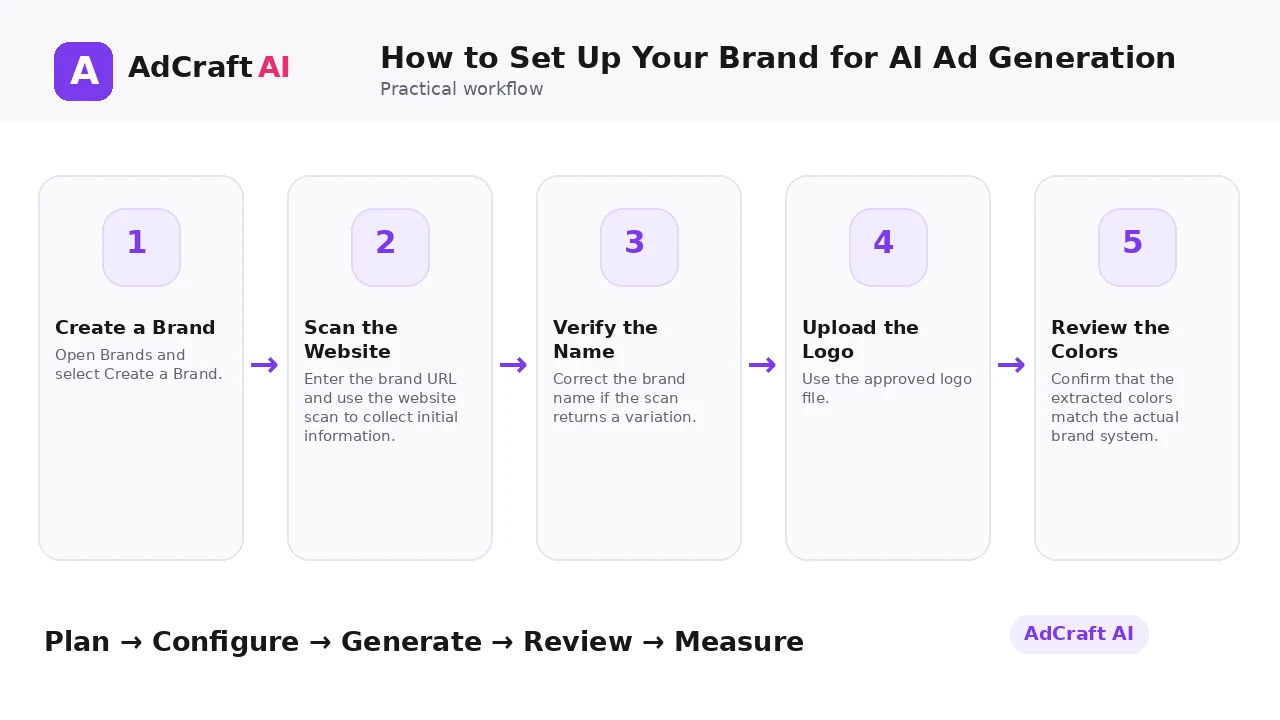
1. Create a Brand
Open Brands and select Create a Brand.
2. Scan the Website
Enter the brand URL and use the website scan to collect initial information.
3. Verify the Name
Correct the brand name if the scan returns a variation.
4. Upload the Logo
Use the approved logo file.
5. Review the Colors
Confirm that the extracted colors match the actual brand system.
6. Improve the Description
Add enough context for the AI to understand the offer and audience.
7. Use Advanced Setup
Connect supported ad accounts or add other brand-specific configuration when needed.
8. Create the Brand
Save only after every field has been reviewed.
How AdCreative.ai Brand Setup Works
AdCreative.ai’s help center says users first create a brand, enter a website URL and select Scan My Website. The system analyzes the site and can prefill the brand name, logo and description.
The documentation says the app can automatically pick three colors from the logo. Users can edit the results manually and add a brand description to give the AI more context.
Advanced Setup can also be used to connect supported ad accounts. Brand setup should therefore be treated as a quality-control step, not a form to rush through.
Explore the Current AdCreative.ai Workflow
Use the feature as a starting point, verify the current interface and plan details, and review every output before it becomes part of a live campaign.
Explore AdCreative.ai →What to Review Before You Use the Result
| Review Area | What to Check |
|---|---|
| Website data | Did the scan identify the correct business and offer? |
| Logo | Is the uploaded file the current approved version? |
| Colors | Do extracted colors match the actual brand palette? |
| Description | Does it explain the product, audience and value clearly? |
| Accounts | Are connected account IDs correct? |
| Consistency | Will future projects receive the same accurate brand context? |
Practical Example: Set Up a New Ecommerce Brand
Imagine a new accessories store with a clean website and one main logo.
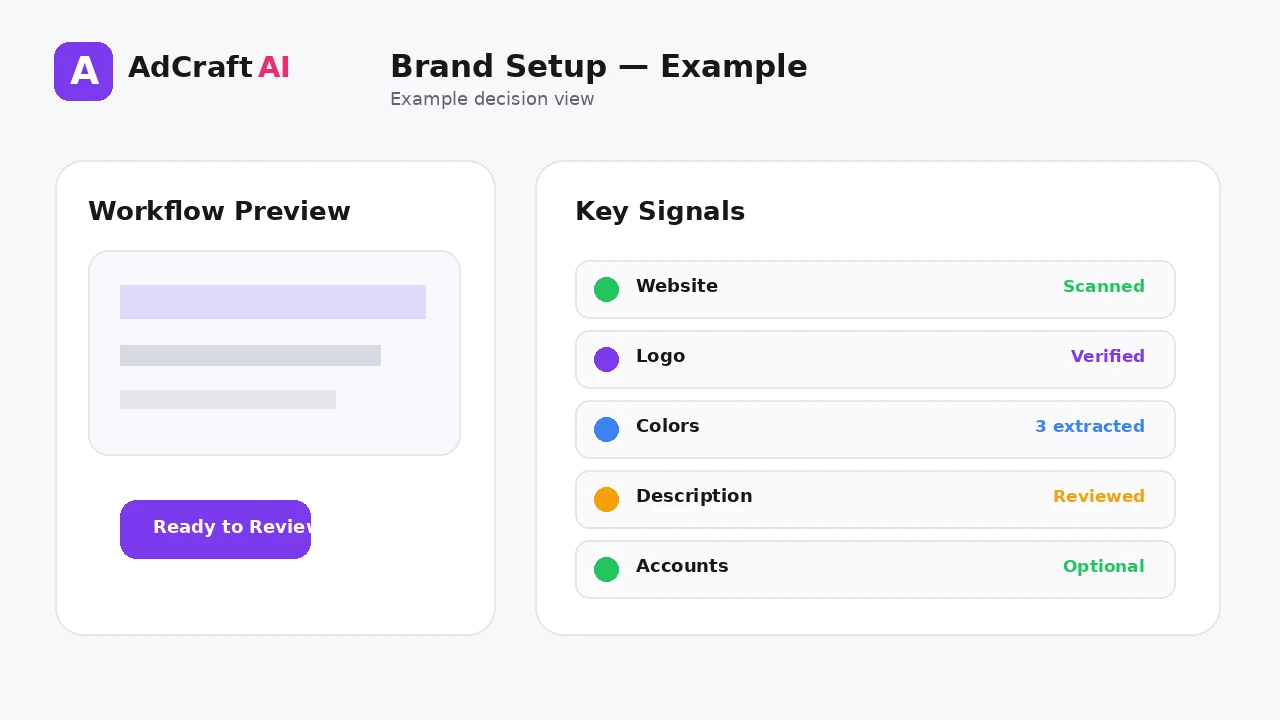
Website scan: Import the store name, basic description and logo.
Manual review: Correct the description so it reflects the actual products and customer segment.
Brand check: Confirm the logo and three primary colors, then connect only the correct ad account.
Now the creative tools start with consistent brand information instead of guessing from each new prompt.
Common Mistakes
Trusting the website scan without review
Automatic extraction can still need corrections.
Using an outdated logo
Generated assets inherit the wrong brand identity.
Leaving the description vague
The AI has less context about the real offer and customer.
Accepting wrong colors
Logo extraction can surface colors that are not primary brand colors.
Connecting the wrong account ID
That can create confusion in later integration workflows.
Creating duplicate brands
A clear brand structure keeps projects and account connections easier to manage.
Best Practices
- Use accurate and current source information.
- Create a small number of meaningful variations before expanding volume.
- Keep brand, offer and landing-page information consistent.
- Use automation and scoring as decision support, not as guarantees.
- Review every asset before delivery or launch.
- Use real campaign or operational data to decide the next iteration.
A Simple Repeatable Workflow
- Define one campaign or workflow goal.
- Prepare accurate source inputs.
- Configure the relevant brand, account or creative settings.
- Generate or complete a small first batch.
- Review accuracy, brand fit and operational risk.
- Deliver or launch only approved assets.
- Measure the result with the appropriate data source.
- Document what worked and what failed.
- Use the learning to improve the next iteration.
Continue Building Your AI Advertising Workflow
Frequently Asked Questions
Do I need to create a brand before generating ads?
AdCreative.ai’s help center says a brand is required before creating a project.
Can AdCreative.ai scan my website?
Yes. The documented setup includes Scan My Website to collect brand information.
Does it pull brand colors automatically?
The help center says the app can pick three colors from the logo, which you should verify.
Why does the brand description matter?
AdCreative.ai says the description helps its AI better understand the brand.
Can I connect ad accounts during brand setup?
Yes. The current Advanced Setup documentation includes ad-account connections.
What if my Generate button is greyed out?
The help center says this can happen when a brand has not yet been created for the project.
Official Resources
Product features, limits, integrations and plan details can change. Verify the current workflow in the official resources below.
Final Thoughts
Give the AI accurate brand context before generating ads by reviewing your website scan, logo, colors, description and optional account connections.
The strongest AI advertising workflow combines faster production or analysis with human review and real performance data.
Explore More AdCreative.ai Tools
Compare the current features with your actual creative workflow and use the capabilities that remove real production or analysis bottlenecks.
Discover the AI Tool →