AI STOCK IMAGES GUIDE
How to Generate AI Stock Images for Ads in 2026
Create advertising-ready stock visuals from a clear prompt, preset style, custom direction or reference image—then review commercial fit before using them in campaigns.
Disclosure: This page may contain affiliate links. We may earn a commission at no extra cost to you if you sign up through these links.
AI stock-image generation is useful when a campaign needs a specific visual that would be slow or expensive to source through a traditional shoot or a large stock library.
AdCreative.ai currently documents a Stock Images workflow where users choose a size, select a preset style, enter a custom style description or upload a reference image, then write a prompt manually or let AI improve it.
The practical goal is not to generate random pictures. It is to create visuals that fit one campaign idea, preserve brand context and can be reviewed before they become paid-media assets.
For the wider strategy around generating, testing and improving advertising assets, see our complete AI advertising guide.
What This Workflow Means in Practice
Create advertising-ready stock visuals from a clear prompt, preset style, custom direction or reference image—then review commercial fit before using them in campaigns.
The goal is to reduce repetitive work while keeping the final campaign, integration or business decision accurate and measurable.
What Inputs Matter Most?
| Input | Why It Matters |
|---|---|
| Image size | Sets the output format before generation. |
| Style direction | Use a preset style, a custom description or a reference image. |
| Prompt | Describes the subject, composition, lighting, environment and constraints. |
| Variation request | Creates controlled alternatives instead of unrelated outputs. |
| Brand context | Keeps visual choices relevant to the campaign and audience. |
| Commercial review | Checks whether the final asset is suitable for the intended advertising use. |
What to Prepare Before You Start
- Define the ad placement before choosing the image size.
- Write one visual idea per prompt instead of mixing several scenes.
- Describe lighting, composition and environment explicitly.
- Use a reference image only when you want a specific visual direction.
- Avoid prompts that reproduce another brand identity or protected character.
- Plan several controlled variations so you can compare composition rather than randomness.
Important: Better source information reduces the amount of guessing in the workflow.
How to Generate AI Stock Images for Ads: Step by Step
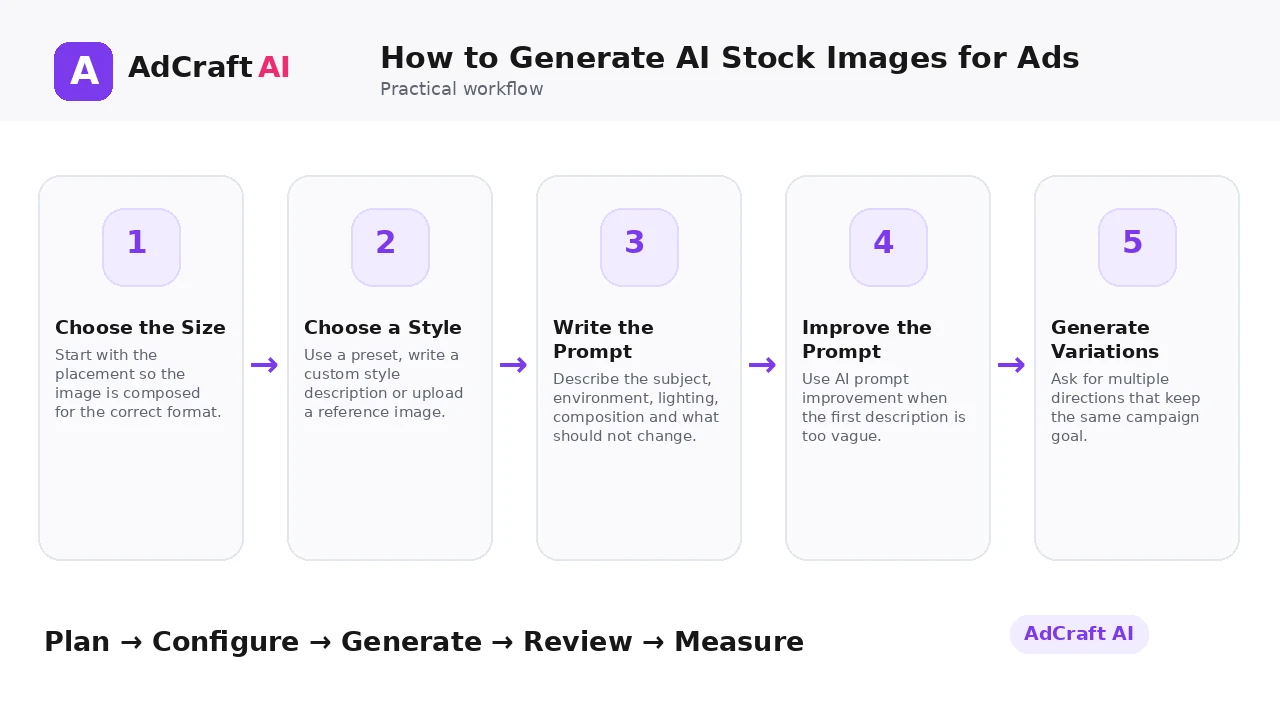
1. Choose the Size
Start with the placement so the image is composed for the correct format.
2. Choose a Style
Use a preset, write a custom style description or upload a reference image.
3. Write the Prompt
Describe the subject, environment, lighting, composition and what should not change.
4. Improve the Prompt
Use AI prompt improvement when the first description is too vague.
5. Generate Variations
Ask for multiple directions that keep the same campaign goal.
6. Review Visual Accuracy
Check objects, text-like artifacts, anatomy if present and brand relevance.
7. Select Favorites
Keep only images that are both visually strong and useful for the campaign.
8. Adapt for the Ad
Add copy, CTA and brand elements in the creative workflow before testing.
How AdCreative.ai Stock Images Work
AdCreative.ai’s help center currently says the Stock Images workflow starts from Brands → Create New Project → Stock Images. Users select a size, choose a preset style, enter a custom style description or upload a reference image.
The documented prompt workflow supports writing the prompt manually or using AI to improve it, and the interface can suggest variations before generation.
Use those controls to narrow the visual direction first. A more specific creative brief generally makes the review process easier than generating a large unrelated batch.
Explore the Current AdCreative.ai Workflow
Use the feature as a starting point, verify the current interface and plan details, and review every output before it becomes part of a live campaign.
Explore AdCreative.ai →What to Review Before You Use the Result
| Review Area | What to Check |
|---|---|
| Composition | Is there clear space for the message and CTA? |
| Relevance | Does the visual support the real product, offer or audience? |
| Artifacts | Are hands, objects, reflections and text-like details plausible? |
| Brand fit | Does the lighting and style match the brand system? |
| Originality | Is the asset distinct from competitors and reference material? |
| Ad use | Can the image work at realistic feed size, not only full screen? |
Practical Example: Three Stock-Image Directions for One Campaign
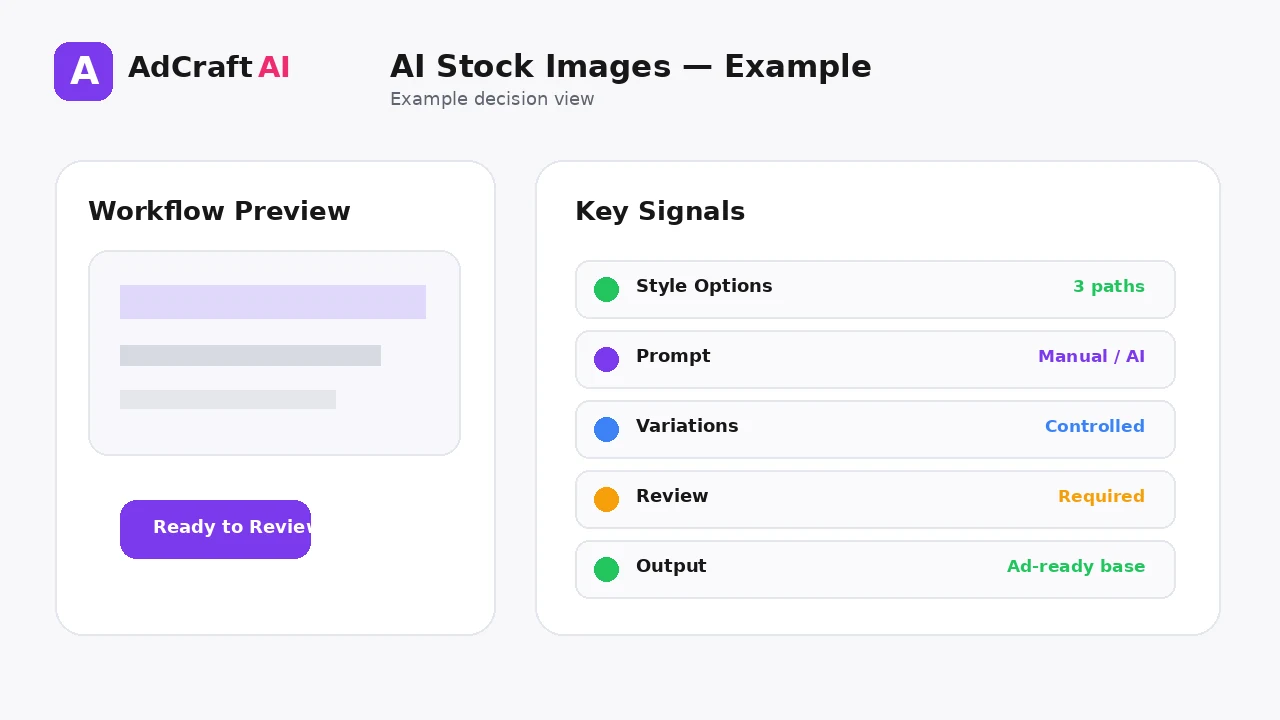
Imagine a software brand promoting a productivity feature.
Direction 1 — Minimal workspace: Clean desk, laptop, soft daylight and empty copy space.
Direction 2 — Abstract speed: Modern geometric motion cues with brand-color accents.
Direction 3 — Data clarity: Clean dashboard-inspired visual language without copying a real interface.
Test the campaign message across these directions while keeping the offer and copy stable.
Common Mistakes
Using a vague prompt
The model has more room to guess when the subject and composition are unclear.
Generating without placement context
A beautiful landscape image may be useless in a vertical story placement.
Copying a reference too literally
Use reference material for direction, not to reproduce another brand’s creative.
Ignoring artifacts
Small visual errors become more obvious in paid ads.
Adding too much text in generation
Generate the visual first, then control typography in the editor.
Testing unrelated images
Creative tests are easier to interpret when one variable changes at a time.
Best Practices
- Use accurate and current source information.
- Create a small number of meaningful variations before expanding volume.
- Keep brand, offer and landing-page information consistent.
- Use automation and scoring as decision support, not as guarantees.
- Review every asset before delivery or launch.
- Use real campaign or operational data to decide the next iteration.
A Simple Repeatable Workflow
- Define one campaign or workflow goal.
- Prepare accurate source inputs.
- Configure the relevant brand, account or creative settings.
- Generate or complete a small first batch.
- Review accuracy, brand fit and operational risk.
- Deliver or launch only approved assets.
- Measure the result with the appropriate data source.
- Document what worked and what failed.
- Use the learning to improve the next iteration.
Continue Building Your AI Advertising Workflow
Frequently Asked Questions
Can AdCreative.ai generate stock images with AI?
Its current help documentation describes a Stock Images project with AI-assisted styles, prompts and variations.
Can I upload a reference image?
Yes. The help center lists reference-image upload as one of the style options.
Can AI improve my prompt?
Yes. The documented workflow lets you enter the prompt manually or let AI improve it.
Should I generate text inside the image?
For advertising, it is usually easier to control final typography separately in the creative editor.
How many variations should I make?
Start with a small controlled set, compare them, then expand the strongest direction.
Do generated images automatically guarantee commercial suitability?
No. Review the final asset, current platform terms and any rights or policy requirements for your use case.
Official Resources
Product features, limits, integrations and plan details can change. Verify the current workflow in the official resources below.
Final Thoughts
Create advertising-ready stock visuals from a clear prompt, preset style, custom direction or reference image—then review commercial fit before using them in campaigns.
The strongest AI advertising workflow combines faster production or analysis with human review and real performance data.
Explore More AdCreative.ai Tools
Compare the current features with your actual creative workflow and use the capabilities that remove real production or analysis bottlenecks.
Discover the AI Tool →